
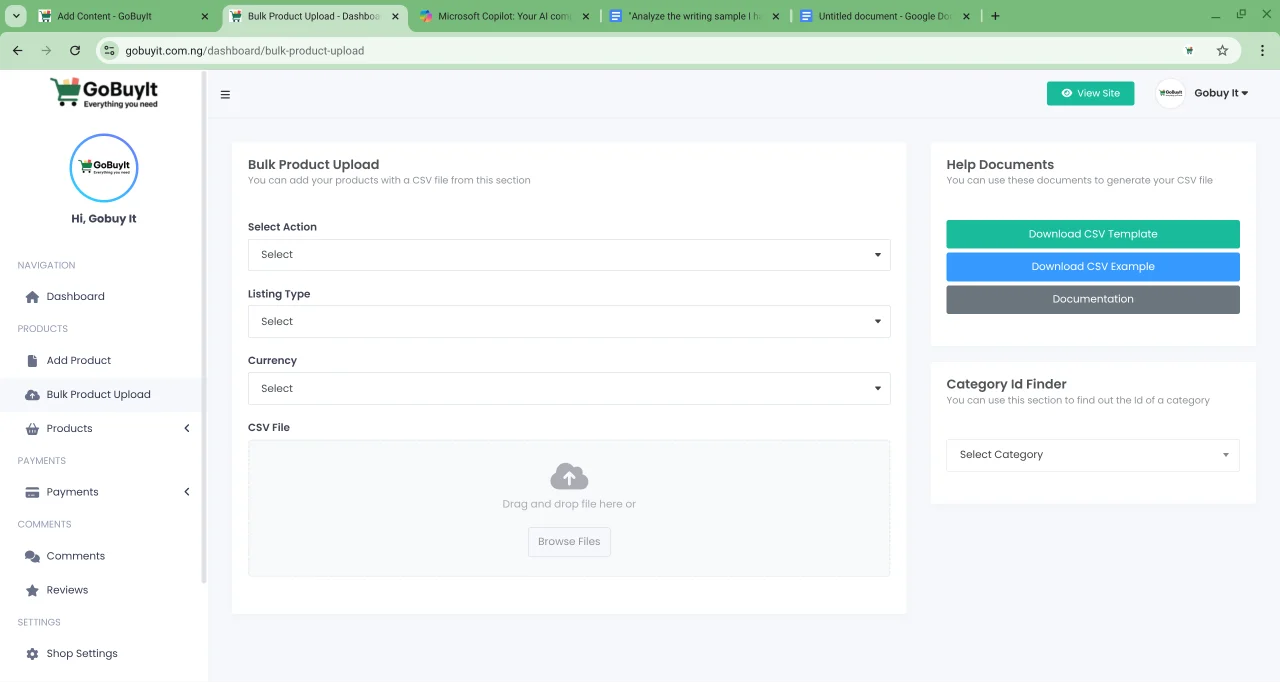
If you’re managing a large inventory, uploading products one by one can take forever. That’s why GoBuyIt offers a bulk product upload feature — so you can add or update multiple products at once using a CSV file.
It’s fast, efficient, and keeps your listings consistent.
How It Works
There are two main ways to use the bulk upload feature:
🆕 1. Add New Products
-
Download the CSV template from the Bulk Product section
-
Fill in the required and optional columns with your product data
-
Upload the completed CSV file back into the system
Important: Pay close attention to the data type for each column — some require numbers, others need text or dates. You’ll find a full breakdown of each column below.
✏️ 2. Edit Existing Products
-
Add an id column to the CSV template (you can find product IDs on the Products page)
-
Include only the columns you want to update — like price, stock, or description
-
Upload the updated CSV file to apply changes
Example: If you want to update stock and prices, your CSV might look like this:
"id","price","price_discounted","stock"
"1","30","20","1000"
"5","40","40","500"
Note: To update prices, you must include both the price and price_discounted columns.
🌍 Multi-language Support
Want to sell in more than one language? The bulk upload feature supports that too.
How to Add Multiple Languages:
-
Each language has a Language ID (e.g., English = 1, German = 2)
-
In your CSV file, add extra columns for each language using this format:
title, short_description, description, tags
title_lang2, short_description_lang2, description_lang2, tags_lang2
When you upload your CSV, the system will detect and save the translations.
Example:
"id","title","short_description","description","tags",...,"title_lang2","short_description_lang2","description_lang2","tags_lang2"
"1","Red Dress","Beautiful red dress","A lovely red dress for summer","dress,red,fashion",...,"Rotes Kleid","Schönes rotes Kleid","Ein hübsches rotes Kleid für den Sommer","kleid,rot,mode"
This adds the product in both English and German.
📊 CSV Column Guide
Here’s a quick reference for the most common columns:
| Column | Description |
|---|---|
| title | Required. Product name. Example: Modern grey couch and pillows |
| slug | Optional. Auto-generated if left blank. Example: modern-grey-couch |
| sku | Optional. Product code. Example: MD-GR-6898 |
| category_id | Required. Category number. Example: 1 |
| brand_id | Optional. Brand number. Example: 1 |
| price | Required. Product price. Example: 3456.25 |
| price_discounted | Optional. Discounted price. Example: 2456.25 |
| vat_rate | Optional. VAT percentage. Example: 8 |
| stock | Required. Quantity available. Example: 100 |
| short_description | Optional. Brief summary. Example: Comfortable couch |
| description | Optional. Full product details |
| tags | Optional. Keywords. Example: nice, comfortable, couch |
| image_url | Optional. Direct image links (comma-separated for multiple images) |
| external_link | Optional. Link to external product page |
| updated_at | Optional. Timestamp for updates. Example: 2024-06-30 10:27:00 |
| created_at | Optional. Timestamp for creation. Auto-filled if left blank |
✅ Final Tip
Before uploading, double-check your CSV for typos, missing values, or formatting errors. A clean file means a smooth upload.