
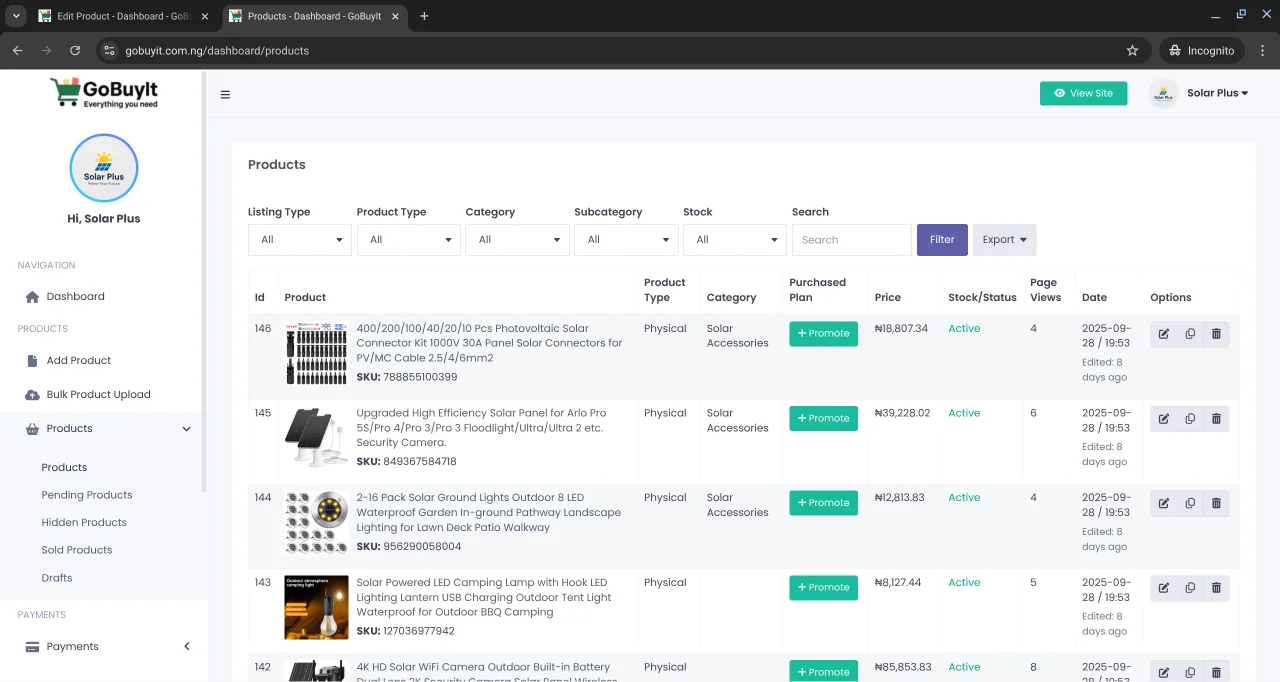
Once your products are listed, GoBuyIt gives you full control to edit, update, and even promote them to reach more buyers. Everything happens from your dashboard.
Let’s walk through how to manage your listings like a pro.
Step 1: Go to Your Products Page
After logging in, head to:
🔗
Or:
-
On a laptop: Click your name at the top right, then use the left-hand menu to select Products → Products.
-
On mobile: Tap the menu icon, go to Dashboard, then find Products.
This opens a full list of your active listings.
Step 2: Review Your Listings
Each product is displayed in a table with key details:
| Column | What It Shows |
|---|---|
| ID | Product ID number |
| Product | Title and SKU |
| Product Type | Physical or Digital |
| Category | Assigned category |
| Purchased Plan | Promotion status (if active) |
| Price | Current selling price |
| Stock | Quantity available |
| Status | Active or Inactive |
| Actions | Edit, Copy, Delete |
Step 3: Edit or Copy a Product
To make changes:
-
Click the Actions icon next to the product
-
Choose Edit to update the title, description, price, stock, images, or category
-
Choose Copy to duplicate the product and make quick edits for a similar item
This is useful if you sell variations of the same product — like different sizes or colors.
Step 4: Filter and Search
Use the filters at the top of the page to sort your listings by:
-
Listing Type
-
Product Type
-
Category
-
Stock status
-
Keyword search
This helps you find specific products fast, especially if you have a large inventory.
Final Tip
Keep your listings fresh. Update stock levels, adjust prices, and use promotional plans to boost visibility. The more active your shop looks, the more buyers you’ll attract.